# Configuring Document Relationship Types
Document relationships create a connection between two documents. For example, a user could create relationships on a promotional piece to connect several documents for drug study results. In that example, the relationship type might be called _Supporting Studies_. Vault includes several standard relationship types and allows Admins to create custom relationship types.
## Accessing Document Relationship Types
Access the **Relationship Types** page from **Admin > Configuration > Document Relationships**. You must have a security profile that grants _Document Relationships permission_ permissions to configure document relationship types.
## Creating Document Relationship Types
You can create custom document relationship types with different applicable document types, version specificity rules, and document field filters. These settings govern which documents can use the relationship type, whether the relationship is source-specific, and whether the relationship is carried forward when new document versions are created.
To create a custom document relationship type:
1. Navigate to **Admin > Configuration > Document Relationships**.
2. Click **Create**. The _New Relationship Type_ page is displayed.
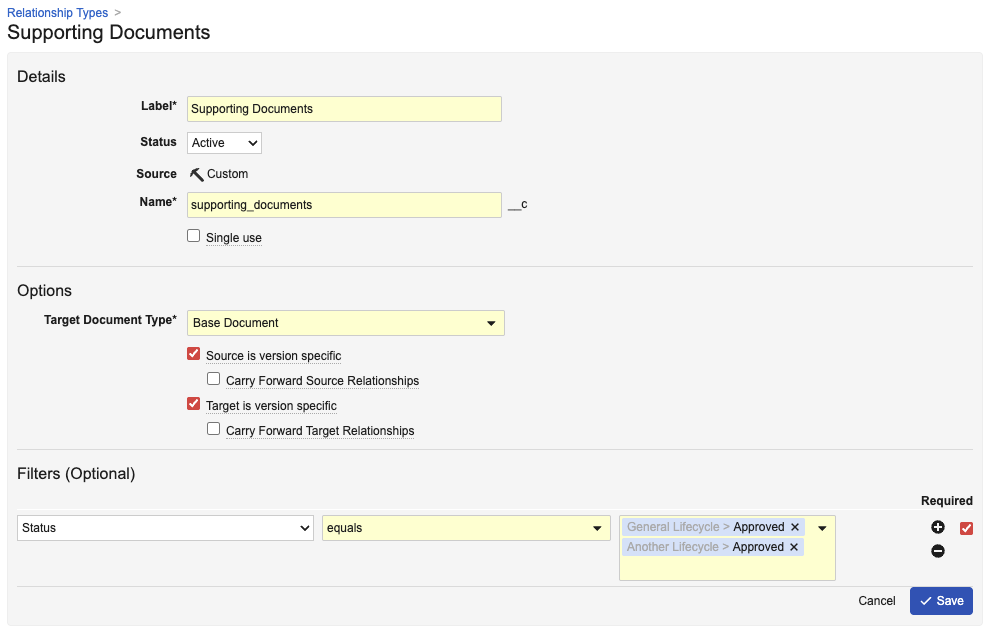
3. Enter a **Label** for the relationship type. The **Name** is populated based on the entered **Label**.
4. Select the **Target Document Type** to specify the document type required for target documents using this relationship type.
5. Optional: In the **Options** section, enable [additional settings][1] as needed.
6. Optional: In the **Filters (Optional)** section, add [document field filters][1] as needed.
 ### Document Relationship Type Settings & Filters {#relationship-settings-filters}
The below optional settings and filters are available when configuring relationship types. See Version-Specific Document Relationships for more information and examples.
* **Single Use**: When enabled, a source document can have only one relationship of this relationship type. For example, if _Single Use_ is enabled for the _Based On_ relationship type but not for the _Linked Documents_ relationship type, then a source document can have one _Based On_ relationship to a target document and multiple _Linked Documents_ relationships to multiple target documents.
* **Source is Version Specific**: When enabled, the relationship is specific to a single version of the source document, and the relationship is not carried forward to any new versions of the source document. The relationship always points to the specific source document version even when a new version is created.
* **Carry Forward Source Relationships**: When enabled and a new version of the source document is created, Vault carries forward all outbound relationships to the new source document version, including relationships to other versions of the same target document. This setting is only available when _Source is Version Specific_ is enabled.
* **Target is Version Specific**: When enabled, the relationship is specific to a single version of the target document, and the relationship is not carried forward to any new versions of the target document. The relationship always points to the specific target document version even when a new version is created.
* **Carry Forward Target Relationships**: When enabled, new versions of the target document are automatically carried forward to existing relationships with the source document. When creating a new version of the target document, Vault automatically assigns the new target document version to the relationship's current source document version. This setting is only available when _Target is Version Specific_ is enabled.
* **Filters**: Configured filters are applied to the _Add Relationship_ dialog when creating a new relationship on a document. For example, a relationship type may have a filter on _Product_. Filters can be required or not required. Users can remove non-required filters only. Some filters may not dictate a specific field value, but instead that the field value of the target document matches that of the source document.
## Editing Document Relationship Types
To edit an existing document relationship type, navigate to **Admin > Configuration > Document Relationships**, select the relationship type you want to edit, and click **Edit**. Edit the information and settings as needed and click **Save**.
Some standard relationship types cannot be edited.
## Related Permissions
To manage document relationships, you must be granted _Document Relationships_ permissions in **Admin > Users & Groups > Permission Sets**. This permission is granted automatically for the standard _System Administrator_ and _Vault Owner_ security profiles.
[1]: #relationship-settings-filters
### Document Relationship Type Settings & Filters {#relationship-settings-filters}
The below optional settings and filters are available when configuring relationship types. See Version-Specific Document Relationships for more information and examples.
* **Single Use**: When enabled, a source document can have only one relationship of this relationship type. For example, if _Single Use_ is enabled for the _Based On_ relationship type but not for the _Linked Documents_ relationship type, then a source document can have one _Based On_ relationship to a target document and multiple _Linked Documents_ relationships to multiple target documents.
* **Source is Version Specific**: When enabled, the relationship is specific to a single version of the source document, and the relationship is not carried forward to any new versions of the source document. The relationship always points to the specific source document version even when a new version is created.
* **Carry Forward Source Relationships**: When enabled and a new version of the source document is created, Vault carries forward all outbound relationships to the new source document version, including relationships to other versions of the same target document. This setting is only available when _Source is Version Specific_ is enabled.
* **Target is Version Specific**: When enabled, the relationship is specific to a single version of the target document, and the relationship is not carried forward to any new versions of the target document. The relationship always points to the specific target document version even when a new version is created.
* **Carry Forward Target Relationships**: When enabled, new versions of the target document are automatically carried forward to existing relationships with the source document. When creating a new version of the target document, Vault automatically assigns the new target document version to the relationship's current source document version. This setting is only available when _Target is Version Specific_ is enabled.
* **Filters**: Configured filters are applied to the _Add Relationship_ dialog when creating a new relationship on a document. For example, a relationship type may have a filter on _Product_. Filters can be required or not required. Users can remove non-required filters only. Some filters may not dictate a specific field value, but instead that the field value of the target document matches that of the source document.
## Editing Document Relationship Types
To edit an existing document relationship type, navigate to **Admin > Configuration > Document Relationships**, select the relationship type you want to edit, and click **Edit**. Edit the information and settings as needed and click **Save**.
Some standard relationship types cannot be edited.
## Related Permissions
To manage document relationships, you must be granted _Document Relationships_ permissions in **Admin > Users & Groups > Permission Sets**. This permission is granted automatically for the standard _System Administrator_ and _Vault Owner_ security profiles.
[1]: #relationship-settings-filters