# Configuring the Document Readiness Panel
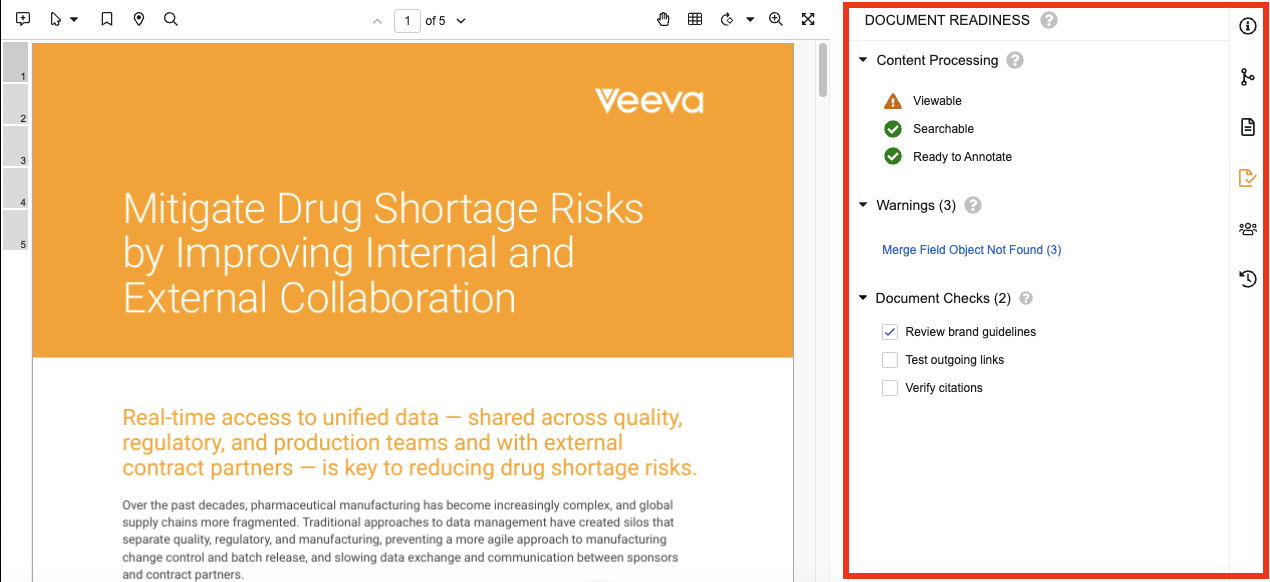
The Document Readiness panel on the Doc Info page provides users and Admins improved visibility into the processes contributing to a document's readiness for use in Vault. The panel displays statuses related to rendition generation, searchability, and annotations; warnings related to these operations and how to address them; and document checks to aid users during document reviews.
 ## Configuration Overview
The following configuration options are available for the Document Readiness panel:
1. [Create document check][1] sections, associate them with the appropriate document types, and create the individual document checks.
2. [Configure lifecycle state entry criteria][2] to validate for outstanding document warnings or checks.
3. [Create a document readiness report type][3] for running document readiness metrics reports.
## Configuring Document Checks {#configure-document-checks}
Document checks are document type-specific checklist items displayed in the Document Readiness panel to help guide users in documentation reviews.
Admins can configure document checks and use them in [lifecycle state entry criteria][2] to ensure that users have completed all checks before a document can proceed in its lifecycle. Once an Admin has configured document checks, they are only visible on new document versions created after the checks have been configured.
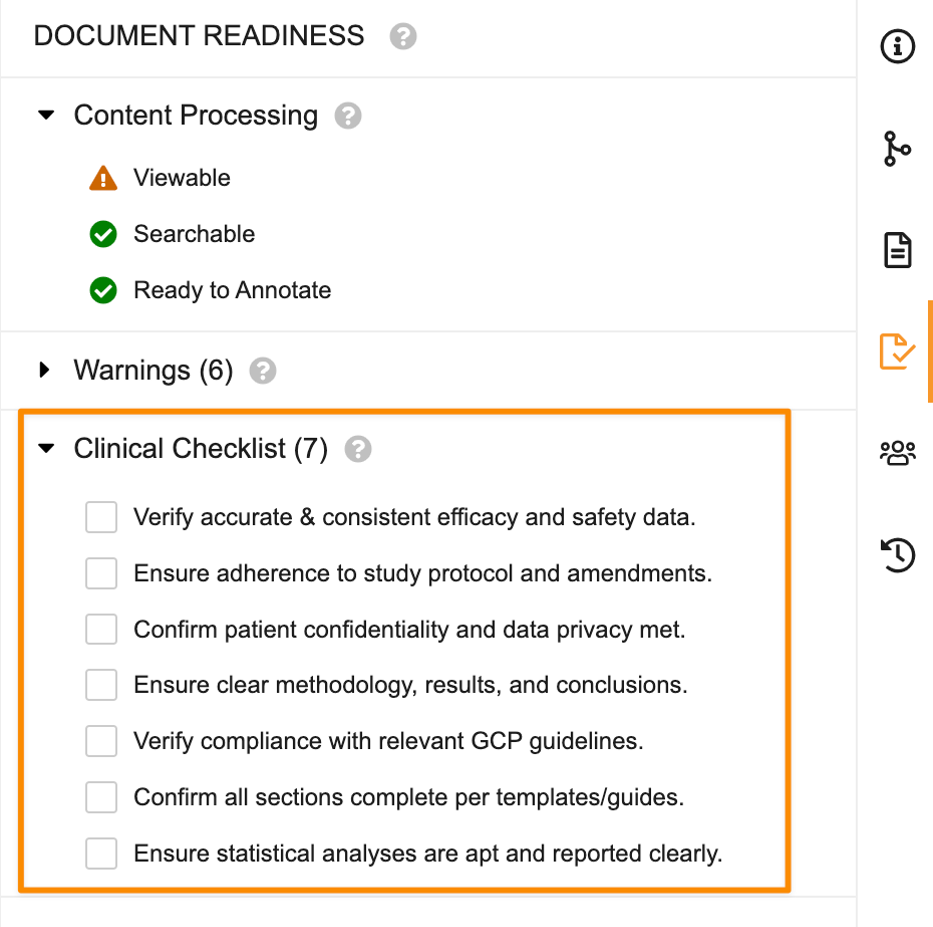
The following example shows a document check section labeled _Clinical Checklist_ with seven (7) outstanding document checks in the Document Readiness panel:
## Configuration Overview
The following configuration options are available for the Document Readiness panel:
1. [Create document check][1] sections, associate them with the appropriate document types, and create the individual document checks.
2. [Configure lifecycle state entry criteria][2] to validate for outstanding document warnings or checks.
3. [Create a document readiness report type][3] for running document readiness metrics reports.
## Configuring Document Checks {#configure-document-checks}
Document checks are document type-specific checklist items displayed in the Document Readiness panel to help guide users in documentation reviews.
Admins can configure document checks and use them in [lifecycle state entry criteria][2] to ensure that users have completed all checks before a document can proceed in its lifecycle. Once an Admin has configured document checks, they are only visible on new document versions created after the checks have been configured.
The following example shows a document check section labeled _Clinical Checklist_ with seven (7) outstanding document checks in the Document Readiness panel:
 ### Creating Document Check Sections
1. Navigate to **Admin > Configuration > Document Checks**.
2. Click **Create** on the _All Document Check Sections_ page.
3. Enter a **Section Label**. This label is displayed as the section heading for the document checks in the Document Readiness panel. The system populates the _Section Name_ field according to the _Section Label_.
4. Enter or update the **Section Name**.
5. Optional: Select a **Status** of **Active** or **Inactive**. Document check sections are created as _Active_ by default. _Inactive_ sections are not displayed in the Document Readiness panel.
6. Optional: Enter **Help Text** for the document check section. This help text is displayed when users hover over the question mark () in the document check section heading in the Document Readiness panel.
7. Select the applicable **Document Types**. The document check section and its checks are displayed for all selected document types.
8. Click **Save**. The system saves the document check section and opens the _Document Check Section_ page where you can create and manage document checks.
### Creating Document Checks
1. In **Admin > Configuration > Document Checks**, open the document check section to which you want to add document checks.
2. Click **Create** in the _Checks_ section of the _Document Check Section_ page.
3. Enter a **Check Label**. This label is displayed as the document check text in the document check section of the Document Readiness panel. The system populates the _Check Name_ field according to the _Check Label_.
4. Optional: Enter **Help Text** for the document check. This help text is displayed when users hover over the document check label in the Document Readiness panel.
5. Select a **Status** of **Active** or **Inactive**. Document check sections are created as _Active_ by default. _Inactive_ checks are not displayed in the Document Readiness panel.
6. Click **Save** to save the document check and return to the _Document Check Section_ page or **Save + Create** to save the document check and add another document check.
### Modifying Document Checks
After creating document checks in a document check section, you can update their label, text, and status, update the order in which the document checks are displayed, and delete document checks.
To modify document checks:
1. In **Admin > Configuration > Document Checks**, open the document check section that contains the document checks you want to modify.
2. Click **Reorder** to update the order in which the document checks are displayed in the document check section. Drag and drop the checks in the order you want or click **Sort A - Z** to sort them alphabetically.
3. Click **Save** to save the updated document check order.
4. Click **Delete** () in a document check row to delete a document check. Click **Continue** in the confirmation dialog to confirm that you want to delete the document check.
5. To update the text of a document check, double-click the **Check Label** or **Help Text** cell and modify the text.
6. To update the status of a document check, select the status from the **Status** drop-down. _Inactive_ checks are not displayed in the Document Readiness panel.
## Configuring Lifecycle State Entry Criteria {#entry-criteria}
Admins can configure lifecycle state entry criteria to validate for the existence of outstanding warnings or checks before the document can be transitioned to a specific state.
To configure document warning validation, navigate to **Admin > Configuration > Document Lifecycles > \[Lifecycle\] > States > \[State\] > Entry Criteria** and create a rule where the **Document Warnings** field is **equal** to **0**.
To configure document check validation, create an **Entry Criteria** rule where the **Document Checks** field is **equal** to **0**.
## Creating the Document Readiness Report Type {#document-readiness-report}
The _Document Readiness Metrics_ (`document_readiness_metrics__sys`) object allows for reporting on outstanding document warnings and checks. To create a report for outstanding warnings and checks, an Admin must first create the necessary report type in **Admin > Configuration > Report Types**.
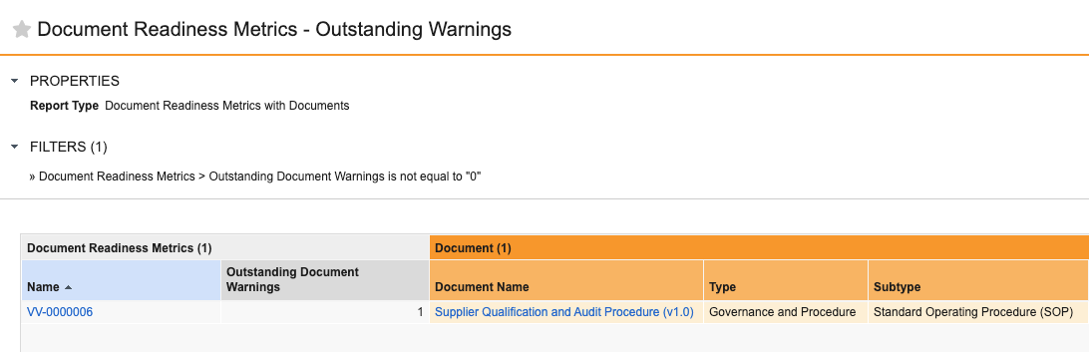
The following example _Document Readiness Metrics_ report displays documents with outstanding document warnings and the number of warnings:
### Creating Document Check Sections
1. Navigate to **Admin > Configuration > Document Checks**.
2. Click **Create** on the _All Document Check Sections_ page.
3. Enter a **Section Label**. This label is displayed as the section heading for the document checks in the Document Readiness panel. The system populates the _Section Name_ field according to the _Section Label_.
4. Enter or update the **Section Name**.
5. Optional: Select a **Status** of **Active** or **Inactive**. Document check sections are created as _Active_ by default. _Inactive_ sections are not displayed in the Document Readiness panel.
6. Optional: Enter **Help Text** for the document check section. This help text is displayed when users hover over the question mark () in the document check section heading in the Document Readiness panel.
7. Select the applicable **Document Types**. The document check section and its checks are displayed for all selected document types.
8. Click **Save**. The system saves the document check section and opens the _Document Check Section_ page where you can create and manage document checks.
### Creating Document Checks
1. In **Admin > Configuration > Document Checks**, open the document check section to which you want to add document checks.
2. Click **Create** in the _Checks_ section of the _Document Check Section_ page.
3. Enter a **Check Label**. This label is displayed as the document check text in the document check section of the Document Readiness panel. The system populates the _Check Name_ field according to the _Check Label_.
4. Optional: Enter **Help Text** for the document check. This help text is displayed when users hover over the document check label in the Document Readiness panel.
5. Select a **Status** of **Active** or **Inactive**. Document check sections are created as _Active_ by default. _Inactive_ checks are not displayed in the Document Readiness panel.
6. Click **Save** to save the document check and return to the _Document Check Section_ page or **Save + Create** to save the document check and add another document check.
### Modifying Document Checks
After creating document checks in a document check section, you can update their label, text, and status, update the order in which the document checks are displayed, and delete document checks.
To modify document checks:
1. In **Admin > Configuration > Document Checks**, open the document check section that contains the document checks you want to modify.
2. Click **Reorder** to update the order in which the document checks are displayed in the document check section. Drag and drop the checks in the order you want or click **Sort A - Z** to sort them alphabetically.
3. Click **Save** to save the updated document check order.
4. Click **Delete** () in a document check row to delete a document check. Click **Continue** in the confirmation dialog to confirm that you want to delete the document check.
5. To update the text of a document check, double-click the **Check Label** or **Help Text** cell and modify the text.
6. To update the status of a document check, select the status from the **Status** drop-down. _Inactive_ checks are not displayed in the Document Readiness panel.
## Configuring Lifecycle State Entry Criteria {#entry-criteria}
Admins can configure lifecycle state entry criteria to validate for the existence of outstanding warnings or checks before the document can be transitioned to a specific state.
To configure document warning validation, navigate to **Admin > Configuration > Document Lifecycles > \[Lifecycle\] > States > \[State\] > Entry Criteria** and create a rule where the **Document Warnings** field is **equal** to **0**.
To configure document check validation, create an **Entry Criteria** rule where the **Document Checks** field is **equal** to **0**.
## Creating the Document Readiness Report Type {#document-readiness-report}
The _Document Readiness Metrics_ (`document_readiness_metrics__sys`) object allows for reporting on outstanding document warnings and checks. To create a report for outstanding warnings and checks, an Admin must first create the necessary report type in **Admin > Configuration > Report Types**.
The following example _Document Readiness Metrics_ report displays documents with outstanding document warnings and the number of warnings:
 ## Limits
Users can create up to 10 document check sections and up to 20 checks per section.
## Related Permissions {#permissions}
| Type | Permission Label | Controls |
| --- | --- | --- |
| Security Profile | Admin: Document Checks: Read, Create, Edit, Delete | Ability to access the **Admin > Configuration > Document Checks** page (_Read_), ability to create document checks (_Read_ and _Edit_), ability to edit existing document checks (_Edit_), and ability to delete document checks (_Delete_) |
| Security Profile | Application: API: Metadata API | Ability to access the **Admin > Configuration > Document Checks** page |
[1]: #configure-document-checks
[2]: #entry-criteria
[3]: #document-readiness-report
## Limits
Users can create up to 10 document check sections and up to 20 checks per section.
## Related Permissions {#permissions}
| Type | Permission Label | Controls |
| --- | --- | --- |
| Security Profile | Admin: Document Checks: Read, Create, Edit, Delete | Ability to access the **Admin > Configuration > Document Checks** page (_Read_), ability to create document checks (_Read_ and _Edit_), ability to edit existing document checks (_Edit_), and ability to delete document checks (_Delete_) |
| Security Profile | Application: API: Metadata API | Ability to access the **Admin > Configuration > Document Checks** page |
[1]: #configure-document-checks
[2]: #entry-criteria
[3]: #document-readiness-report