# Understanding Rules

## Rules Overview

Rules enable Study Builders to create custom conditional actions in studies. The following actions are available:

* **<a href="/en/lr/918792/">Criteria Check Rule Template</a>:** This template allows you to configure an action that site staff can use to analyze participant data and display outputs that inform decision-making during the study.
* **<a href="/en/lr/918796/">Populate Event Rule Template</a>:** This template allows you to define a rule that can use data from surveys to automatically populate an event's date.
* **<a href="/en/lr/918794/">Schedule Trigger Rule Template</a>:** This template allows you to define a rule that can use data from a submitted survey to automatically trigger a new schedule.
* **<a href="/en/lr/918799/">Send Survey Data Rule Template</a>:** This template allows you to define a rule that can use data from a submitted survey to automatically trigger an API call to transfer data to an external system.
* **<a href="/en/lr/918793/">Survey-Based Notification Template</a>:** This template allows you to configure notifications to be sent when specific conditions are met.

To create a rule template, the study builder defines the trigger, any preconditions that must be met, and the actions that are executed or available.

Because rules can be based on or display survey data, rules can be configured to protect restricted data from users who do not have access to view it. 

We recommend building your rules after you have built surveys, schedules, events, and groups. If you edit values in other tabs while working on a rule, it can break references and prevent you from starting UAT until the references are updated.

To maintain regulatory compliance, the system automatically logs a system-provided reason for change in the audit trail whenever a user creates, updates, or deletes a rule. 

## Element Types

Rule templates are a set of components that enable users to create conditional actions. They include the following elements:

**Building Blocks**
* **Reference:** This element is a defined path to a data object that already exists in eCOA and uses a specific format so that it can be used to trigger a rule.
* **Variable:** This element is a named reference to a specific object that is used in expressions. You can save longer reference strings as variables to make it easier to reference them in expressions.
* **Expression:** This element defines how the data in the rule should be evaluated.

**Components of Rule Templates**
* **Trigger:** This expression initiates the evaluation of a rule.
* **Precondition:** This expression defines what conditions are needed to run the expression. For an object to pass through the precondition, every step in the path has to evaluate as true.
* **Action:** This element defines what should happen if the expression evaluates to true. Actions may be triggered automatically, depending on how they are configured.

## Creating a Reference

### Reference Overview

References are a defined path to a data object that already exists in eCOA and uses a specific format so that it can be used in a rule. To create a reference, you add a reference type and add all related objects.

### Reference Types

There are two types of references you can create: relative and absolute. Relative references begin with the '@' character and refer to the survey that triggered the rule evaluation. Absolute references start with the '$' character and refer to a specific survey defined by the reference path.

<table>
    <thead>
        <tr>
            <th>Use Category</th>
            <th>Type @</th>
            <th>Type $</th>
        </tr>
    </thead>
    <tbody>
        <tr>
            <td>Can I Use It to Refer to Any Survey?</td>
            <td>No. you can only use this type to refer to the survey name that is referenced in the trigger definition.</td>
            <td>Yes. You can use this reference to refer to any of the survey names you select.</td>
        </tr>
        <tr>
            <td>Can I Use It to Reference Multiple Survey Names?</td>
            <td>No. You can only use one @ survey per rule. So you can create multiple @ references, but each reference will refer to the survey that triggered the rule.</td>
            <td>Yes. You can reference different survey names each time you add a reference with this type.</td>
        </tr>
        <tr>
            <td>Can I Add Any Instance I Want?</td>
            <td>No. You must use [-1] (which means the most recent survey) as the instance.</td>
            <td>Yes, as long as you enter a positive or negative integer, and you do not enter 0.</td>
        </tr>
    </tbody>
  </table>

### Survey Objects and Hierarchy

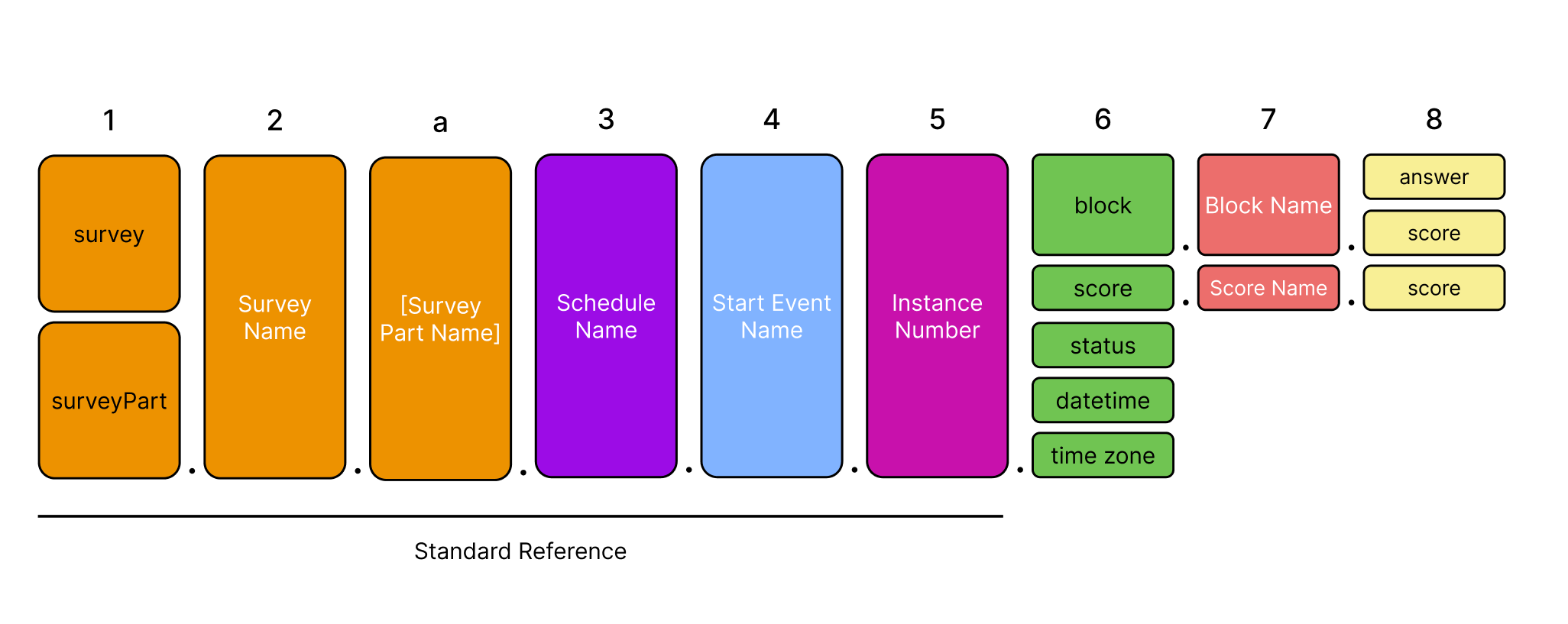
A standard reference that uses survey as the first object includes a minimum of five values that are separated by periods. The objects below are included in a standard survey reference in the order in which they are displayed.

1. Survey or Survey Part
2. Survey Name
   1. (Only for surveys with parts) Survey Part Name
3. Schedule Name
4. Start Event Name
5. Instance Number

You can add the following additional objects in positions 6 through 8 to further define a reference:

{:start="6"}
1. block, score, status, datetime, or time zone
2. Block Name or Score Name
3. answer or score

<a href="https://platform.veevavault.help/assets/images/26R1_eCOA_Rules_Graphic.png" data-lightbox="images" data-title="" data-alt="A diagram shows the eight parts of a standard survey reference. Each part is represented by a colored box. The first five parts are required: 1. survey or surveyPart, 2. Survey Name, a. Survey Part Name, 3. Schedule Name, 4. Start Event Name, and 5. Instance Number. Parts 6 through 8 define specific data: 6. data object type including block, score, status, datetime, and time zone, 7. Block Name or Score Name, and 8. answer or score. Periods separate each part in the path.">
  <img class="docimage" src="https://platform.veevavault.help/assets/images/26R1_eCOA_Rules_Graphic.png" alt="A diagram shows the eight parts of a standard survey reference. Each part is represented by a colored box. The first five parts are required: 1. survey or surveyPart, 2. Survey Name, a. Survey Part Name, 3. Schedule Name, 4. Start Event Name, and 5. Instance Number. Parts 6 through 8 define specific data: 6. data object type including block, score, status, datetime, and time zone, 7. Block Name or Score Name, and 8. answer or score. Periods separate each part in the path." style="width: 1000px;"  />
</a>

To help ensure that you select valid options in each position, the available options are displayed in a list under the position when you enter any of the following characters:  @, $, or period (.) The only item you may need to enter manually is the integer for the instance number. See [Survey Reference Parameter Dictionary][1] for more information about the objects you can add.

### Survey Reference Parameter Dictionary

<table>
<thead>
  <tr>
   <th>Data Object</th>
   <th>Position</th>
   <th>Description</th>
   <th>Type of Value</th>
   <th>Options</th>
   <th>Example</th>
   <th>Notes</th>
   <th>Required?</th>
  </tr>
</thead>
<tbody>
  <tr>
   <td>Survey    </td>
   <td>1</td>
   <td>The object type that all of the other values are related to.</td>
   <td>Static text</td>
   <td>
        <ul>
           <li>Survey</li>
           <li>surveyPart</li>
        </ul>
   </td>
   <td>
        <ul>
           <li>Survey</li>
           <li>surveyPart</li>
        </ul>
   </td>
   <td>None</td>
   <td>Required</td>
  </tr>
  <tr>
   <td>Survey Name</td>
   <td>2</td>
   <td>The name of the survey you want to include in the reference.</td>
   <td>Name of a survey in collection</td>
   <td>Survey name value</td>
   <td>hads</td>
   <td>None</td>
   <td>Required</td>
  </tr>
  <tr>
   <td>Survey Part Name</td>
   <td>2a</td>
      <td>The name of the survey part you want to include in the reference.</td>
   <td>Name of a survey part in the referenced survey</td>
   <td>Survey part name value</td>
   <td>bleed[part1]</td>
   <td>None</td>
   <td>Required for surveys with multiple parts</td>
  </tr>
  <tr>
   <td>Schedule Name</td>
   <td>3</td>
   <td>The name of the schedule you want to include in the reference. </td>
   <td>List of schedules in collection</td>
   <td>
        <ul>
            <li>Schedule name value</li>
            <li>[*]</li>
        </ul>
   </td>
   <td>six_hours</td>
   <td>[*] indicates that the reference should consider all available schedules.</td>
   <td>Required</td>
  </tr>
  <tr>
   <td>Start Event</td>
   <td>4</td>
   <td>The name of the start event for the schedule.</td>
   <td>List of start events in schedule from position 3</td>
   <td>
        <ul>
            <li>Start event name value</li>
            <li>[*]</li>
        </ul>
   </td>
   <td>epro_activated</td>
   <td>
        <ul>
            <li>Ensure that you select the start event to make sure this rule evaluates the data appropriately.</li>
            <li>If multiple schedules are being considered, you may select [*] to make sure all are considered.</li>
        </ul>
   </td>
   <td>Required</td>
  </tr>
  <tr>
   <td>Instance</td>
   <td>5</td>
   <td>The instance of the survey. You can define the specific instance based on the order in which it was submitted or based on the most recent submissions. </td>
   <td>Positive or negative integer based on the instance you want to use.</td>
   <td>
        <ul>
            <li>[#]</li>
            <li>[-#]</li>
            <li>[*]</li>
            <li>[#:#]</li>
            <li>[#;#;#]</li>
            <li>[#:#;#:#]</li>
        </ul>
   </td>
   <td>[1]<br>or<br>[-5]<br>or<br>[*]<br>or<br>[1:5]<br>or<br>[1;2;5]<br>or<br>[1:7;6:8;11;16]</td>
   <td>
        <ul>
            <li>The instance is usually representing in brackets []</li>
            <li>If you used a type of @, you must use [-1].</li>
            <li>[1] is the first instance of a survey. Non-recurring surveys only have 1 instance.</li>
            <li>[2], [3], [4], and so on refer to subsequent submissions of recurring surveys</li>
            <li>[-1] refers to the most recent survey that aligns with the survey name, schedule name, and start event that are earlier in the hierarchy.</li>
            <li>[-2], [-3], [-4], and so on refer to the second most recent submission, third most recent submission, fourth most recent submission, and so on.</li>
            <li>[1:5] refers to a range of instances 1 through 5. Must use all positive or all negative numbers.</li>
            <li>[1;2;5] refers to specific listed instances, in this case 1, 2, and 5. Must use all positive or all negative numbers.</li>
            <li>[1:3;6:8;11;16] combines ranges with specific instances, and would include instances 1, 2, 3, 6, 7, 8, 11, and 16. Must use all positive or all negative numbers.</li>
            <li>Ranges and lists cannot be used for <code>Datetime</code>, <code>Date</code>, and <code>Time</code> answer references in the Populating Events and Survey Trigger rule templates </li>
            <li>If an instance in a range or list evaluates to a null value, the system will not return a result for that instance and will omit it from the array.</li>
        </ul>
   </td>
   <td>Required</td>
  </tr>
  <tr>
   <td>Block (Answer or Score)</td>
   <td>6</td>
   <td>This object enables you to select a specific block name in position 7.</td>
   <td>Static text</td>
   <td>block</td>
   <td>block</td>
   <td>None</td>
   <td>Optional</td>
  </tr>
  <tr>
   <td>Block Name</td>
   <td>7</td>
   <td>This object enables you to reference a specific question by block name.</td>
   <td>List of values pulled from survey in position 2</td>
   <td>Block Name value</td>
   <td>q6</td>
   <td>None</td>
   <td>Required if you selected block for Position 6.</td>
  </tr>
  <tr>
   <td>Answer</td>
   <td>8</td>
   <td>This object references the answer of the block in position 7.</td>
   <td>Static text</td>
   <td>answer</td>
   <td>answer</td>
   <td>None</td>
   <td>Either answer or score is required if you selected <strong>block </strong>for Position 6.</td>
  </tr>
  <tr>
   <td>Score (of a block)</td>
   <td>8</td>
   <td>This object references the score of the block in position 7.</td>
   <td>Static text</td>
   <td>score</td>
   <td>5</td>
   <td>For surveys with multiple parts, you must reference a part name in Position 2a.</td>
   <td>Either answer or score is required if you selected <strong>block </strong>for Position 6.</td>
  </tr>
  <tr>
   <td>Score (Derived in survey)</td>
   <td>6</td>
   <td>This object enables you to reference a specific score name in Position 7.</td>
   <td>Static text</td>
   <td>score</td>
   <td>score</td>
   <td>None</td>
   <td>Optional</td>
  </tr>
  <tr>
   <td>Score Name</td>
   <td>7</td>
   <td>This object enables you to reference a specific score by score name.</td>
   <td>List of values pulled from survey in position 2</td>
   <td>Score name value</td>
   <td>scorad</td>
   <td>None</td>
   <td>Required if <strong>score </strong>was selected for Position 6.</td>
  </tr>
  <tr>
   <td>Score</td>
   <td>8</td>
   <td>This object references the value calculated from the function of the score referenced in position 7.</td>
   <td>Static text</td>
   <td>score</td>
   <td>score</td>
   <td>None</td>
   <td>Required if <strong>score </strong>was selected for Position 6.</td>
  </tr>
  <tr>
   <td>Status</td>
   <td>6</td>
   <td>This status returns the status of the referenced Survey. </td>
   <td>Static text</td>
   <td>status</td>
   <td>status</td>
   <td>For surveys with multiple parts, you must reference a part name in Position 2a.</td>
   <td>Optional</td>
  </tr>
  <tr>
   <td>Datetime</td>
   <td>6</td>
   <td>This object references the datetime associated with the status change for MISSED and COMPLIANT surveys. </td>
   <td>Static text</td>
   <td>datetime</td>
   <td>datetime</td>
   <td>For surveys with multiple parts, you must reference a part name in Position 2a.</td>
   <td>Optional</td>
   </tr>
   <tr>
   <td>Available Datetime</td>
   <td>6</td>
   <td>This object references the datetime a survey was made available for completion by the respondent. </td>
   <td>Static text</td>
   <td>availabledatetime</td>
   <td>availabledatetime</td>
   <td>For surveys with multiple parts, you must reference a part name in Position 2a.</td>
   <td>Optional</td>
   </tr>
  <tr>
   <td>Time zone</td>
   <td>6</td>
   <td>This object returns the time zone ID of the survey submission to support timezone-aware function: <code>IsDateInRange</code>.</td>
   <td>Static text</td>
   <td>timezone</td>
   <td>timezone</td>
   <td>
       <ul>
           <li>Returns the timezone ID in IANA format. For example: America/Denver.</li>
           <li>For surveys with multiple parts, you must reference a part name in Position 2a.</li>
        </ul>
    </td>
   <td>Optional</td>
   </tr>
</tbody>
</table>

## Creating a Variable

### Variable Overview

Variables can be helpful if you want to use the same reference in multiple expressions or actions. Using variables can shorten the length of the expressions or actions significantly and make them easier to read with human-friendly variable names.

For example, if you want to evaluate that the statuses of two surveys are COMPLIANT and then include that information in the criteria check without using variables, the reference evaluation looks similar to the example below, and you would need to copy and paste it in multiple places:

`($survey.survey_caregiver.five_hours.[*].[-1].status = "COMPLIANT") && ($survey.survey_caregiver.five_hours.[*].[-2].status = "COMPLIANT")`

If you add a variable for each reference, the following example shows what you may see: `(STAT1 = "COMPLIANT") && (STAT2 = "COMPLIANT")`

Variable names can also be easier to remember as you are creating expressions.

### Creating Variables

1. From a rule template creation page, in the Rule Tools section, select **Create New Variable.**
2. Enter a short name for the variable in the Name field. For example: Q1ANS
3. Enter a reference in the Definition field. For example: `@survey.hads.[*].[*].[-1].block.HADS0101.answer`

<div class="note-border alert-tip">
  <div class="alert alert-tip" role="alert">
    <div><i class="far fa-lightbulb"></i></div>
    <div class="alert-text">
      <p><strong>Tip</strong>: Enter $ or @ to begin, and then select from the options that are displayed. After you select each option, enter a period and select from the next list of options that are displayed. You can select * if you want the path to include all items that fall in that category.</p>
    </div>
  </div>
</div>


{:start="4"}
1. Save the variable.
2. You can now copy the variable name for use.

## Creating an Expression

### Expression Overview

Expressions define how the data in a rule should be evaluated. You can use references or variables to identify specific eCOA data for analysis, calculation, and display. Expressions can be simple or complex, and multiple expressions can be used for a rule to ensure that you can create actions that run based on very specific conditions.

Ranges or lists always return an array. The array preserves the chronological order of the instances evaluated. For example, the first position in the array always corresponds to the first instance, the second position always corresponds to the second instance, and so on. The position order is determined based on when the system received each set of survey data and assigned it an instance, even when you use relative references.

### Creating Expressions

1. Identify the references or variables that identify the location of the data you want to verify. 
2. Identify which answers, scores, statuses, or datetimes you want to assess. 
3. Create an expression using the values you identified and supported operators and functions. See <a href="#formula-syntax">Formula Syntax</a> for more information on the operators and functions you can include in your expression formula.

<table>
<thead>
  <tr>
   <th>Associated Data Object</th>
   <th>Block or Score Type</th>
   <th>Value Type</th>
   <th>Value to Add</th>
   <th>Example</th>
   <th>Notes</th>
  </tr>
</thead>
<tbody>
  <tr>
   <td>Block Answer</td>
   <td>Single Choice Answer</td>
   <td>Text</td>
   <td>Answer name</td>
   <td>ans_1</td>
   <td>None</td>
  </tr>
  <tr>
   <td>Block Answer</td>
   <td>Multiple Choice Answer</td>
   <td>Array</td>
   <td>Each answer name</td>
   <td>ans_1, ans2, ans4</td>
   <td>Answers return as comma separated values in an array.</td>
  </tr>
  <tr>
   <td>Block Answer</td>
   <td>Numeric Rating Scale Answer</td>
   <td>Number</td>
   <td>Number from the scale</td>
   <td>5</td>
   <td>None</td>
  </tr>
  <tr>
   <td>Block Answer</td>
   <td>Visual Analog Scale Answer</td>
   <td>Number</td>
   <td>Number from the scale</td>
   <td>92</td>
   <td>None</td>
  </tr>
  <tr>
   <td>Block Answer</td>
   <td>Number Entry Answer</td>
   <td>Number</td>
   <td>Number entered by user</td>
   <td>152.4</td>
   <td>None</td>
  </tr>
  <tr>
   <td>Block Answer</td>
   <td>Number Entry (2 Fields) Answer</td>
   <td>Array</td>
   <td>Each number entered by the user</td>
   <td>152,5</td>
   <td>Separate the answers with commas</td>
  </tr>
  <tr>
   <td>Block Answer</td>
   <td>Date Entry Answer</td>
   <td>Date</td>
   <td>Date selected by the user</td>
   <td>2024-01-15</td>
   <td>None</td>
  </tr>
  <tr>
   <td>Block Answer</td>
   <td>Datetime Entry Answer</td>
   <td>Datetime</td>
   <td>Datetime selected by the user</td>
   <td>2024-01-15T13:30</td>
   <td>None</td>
  </tr>
  <tr>
   <td>Block Answer</td>
   <td>Time Entry Answer</td>
   <td>Time</td>
   <td>Time selected by the user</td>
   <td>13:30</td>
   <td>None</td>
  </tr>
  <tr>
   <td>Block Answer</td>
   <td>Text Entry Answer</td>
   <td>Text</td>
   <td>Text entered by the user</td>
   <td>I loved participating in this study!  </td>
   <td>None</td>
  </tr>
  <tr>
   <td>Block Answer</td>
   <td>Optional Answer</td>
   <td>Text</td>
   <td>Answer name</td>
   <td>opt_ans_1</td>
   <td>None</td>
  </tr>
  <tr>
   <td>Block Score</td>
   <td>Score (Block)</td>
   <td>Number</td>
   <td>Block score</td>
   <td>5</td>
   <td>None</td>
  </tr>
  <tr>
   <td>Block Score</td>
   <td>Score (Score)</td>
   <td>Number</td>
   <td>Numerical result of the formula for the score</td>
   <td>84</td>
   <td>None</td>
  </tr>
  <tr>
   <td>Status</td>
   <td>Not applicable</td>
   <td>Text</td>
   <td>status</td>
   <td>COMPLIANT</td>
   <td>Two options are available:
    <ul>
        <li>COMPLIANT</li>
        <li>MISSED</li>
    </ul>
   </td>
  </tr>
  <tr>
   <td>Datetime</td>
   <td>Not applicable</td>
   <td>Text</td>
   <td>datetime</td>
   <td>2025-02-01T12:00+</td>
   <td>None</td>
  </tr>
  <tr>
   <td>Time zone</td>
   <td>Not applicable</td>
   <td>Text</td>
   <td>timezone</td>
   <td>America/New_York</td>
   <td>The time zone ID is used by the <code>IsDateInRange()</code> function for timezone-aware evaluations.</td>
  </tr>
</tbody>
</table>

### Examples

#### Example 1
~~~ json
CountIf("COMPLIANT",
$survey.ItchNRS.[*].[*].[-1].status,
$survey.ItchNRS.[*].[*].[-2].status,
$survey.ItchNRS.[*].[*].[-3].status)>0
~~~

The rule above returns <code>true</code> if at least 1 of the last 3 <code>ItchNRS</code> survey instances was compliant.

#### Example 2
~~~ json
Average($survey.ItchNRS.[*].[*].[-1].block.INRS01.answer,
$survey.ItchNRS.[*].[*].[-2].block.INRS01.answer)
~~~

The rule above returns the average of the last 2 survey instances' <code>INRS01</code> blocks (Numeric Rating Scale).

#### Example 3
~~~ json
Text(Average($survey.ItchNRS.[*].[*].[-1].block.INRS01.answer,
$survey.ItchNRS.[*].[*].[-2].block.INRS01.answer),"#.#")
~~~

The rule above returns the average value as text where the number is rounded to 1 decimal place.

#### Example 4
~~~ json
If(CountIf("COMPLIANT",
$survey.ItchNRS.[*].[*].[-1].status,
$survey.ItchNRS.[*].[*].[-2].status)=2,
Text(Average($survey.ItchNRS.[*].[*].[-1].block.INRS01.answer,
$survey.ItchNRS.[*].[*].[-2].block.INRS01.answer),"#.#"),
"N/A")
~~~

If the last 2 <code>ItchNRS</code> survey instances were both compliant, the rule above returns the average as text where the number is rounded to 1 decimal place.

Else, returns <code>N/A</code>.

#### Example 5
* Survey instance A
    * Part 1 - COMPLIANT
    * Part 2 - COMPLIANT
* Survey instance B
    * Part 1 - COMPLIANT
    * Part 2 - AVAILABLE

<code>If(“COMPLIANT”,$survey.surveyName[part2].[*].[*].[-1].status)</code>

This accesses survey instance A - part 2 and returns true because it is the last part 2 belonging to the last parent survey where all parts are no longer available.

<code>If(“COMPLIANT”,$surveyPart.surveyName[part2].[*].[*].[-1].status)</code>

This accesses survey instance B - part 2 and returns false because it is the last part 2, regardless of what the status of other parts in the parent instance are.

### Formula Syntax {#formula-syntax}
Rules support operators and functions from the <a class="external-link " href="https://platform.veevavault.help/en/lr/52324" target="_blank" rel="noopener">Vault Formula Reference Guide<i class="fa fa-external-link" aria-hidden="true"></i></a>. In addition, you can use the following functions from <a class="external-link " href="https://cdmshelp.veeva.com/gr/resources/formula-reference/#aggregate-functions" target="_blank" rel="noopener">CDMS Formula Reference<i class="fa fa-external-link" aria-hidden="true"></i></a>:

* CountIf: Returns the number of times the specified value can be found across all of the specified identifiers.

* NoBlanks: Returns an array of values with any null values removed. This function preserves the original order of the values passed.

#### Custom Functions
* **IsDateInRange(interval, datetime value, timezone id):** Returns a boolean indicating if the date argument is after the (current date + interval) when evaluated in the target timezoneID. The interval is a numeric value representing days.
* **getAllMatches(value, check reference, return reference):** Returns an array of all values from the return reference where the specified value is found in the check reference. 

<div class="note-border alert-info">
  <div class="alert alert-info" role="alert">
    <div><i class="far fa-info-circle"></i></div>
    <div class="alert-text">
      <p><strong>Note</strong>: The check reference and return reference must use the same survey reference path through their instance numbers.</p>
    </div>
  </div>
</div>


* **checkAllMatch(target value, operator, reference path, output if true position, output otherwise position):** Checks if all matching survey instances in a reference path evaluate to true against a target value using a specified operator. If all are true, it returns the true position value; otherwise, it returns the ‘output otherwise’ position value. 


<div class="note-border alert-info">
  <div class="alert alert-info" role="alert">
    <div><i class="far fa-info-circle"></i></div>
    <div class="alert-text">
      <p><strong>Note</strong>: Operators must be enclosed in quotation marks (e.g., “&gt;=”).</p>
    </div>
  </div>
</div>


* **checkAnyMatch(target value, operator, reference path, output if true position, output otherwise position):** Checks if any matching survey instances in a reference path evaluate to true against a target value using a specified operator. If any are true, it returns the true position value; otherwise, it returns the ‘output otherwise’ position value.

<div class="note-border alert-info">
  <div class="alert alert-info" role="alert">
    <div><i class="far fa-info-circle"></i></div>
    <div class="alert-text">
      <p><strong>Note</strong>: Operators must be enclosed in quotation marks (e.g., “&gt;=”).</p>
    </div>
  </div>
</div>


* **inWindow(value to evaluate, window anchor, start interval, end interval, start excluded, end excluded, [timezone]):** Returns true if a date, datetime, or time falls within a specified window relative to an anchor date
    * The positions use a boolean (true/false) to define whether the start and end boundaries are excluded or included. 
        * True - boundary is excluded. 
        * False - boundary is included.
    * The timezone position is an optional survey reference that resolves as the timezone ID; if left blank, the evaluation runs in default UTC

#### Vault Formula Limitations

The following Vault Formulas are not supported:

* DateValue
    * Workaround: use Date function
* DateTimeValue
    * Workaround: use Date or Time function
* TimeValue
    * Workaround: use Time function
* Text
* CurrencyRate
* StartOfDay

## Testing a Rule
To test your rule, generate data in UAT that activates the rule and meets any requirements. See the following steps for a more detailed overview:

1. Start UAT testing for the study collection. See <a href="/en/lr/912962/">Performing User Acceptance Testing (UAT) on a Collection</a> for more information.
2. In the sandbox eCOA Vault, create a <a href="/en/lr/918788/">study country, site</a>, and <a href="/en/lr/918786/">site user</a> to complete testing from the site perspective.
3. <a class="external-link " href="https://sites.veevavault.help/gr/epro/getting-started/accessing-your-account/" target="_blank" rel="noopener">Log in to Veeva eCOA as a site user<i class="fa fa-external-link" aria-hidden="true"></i></a> and <a class="external-link " href="https://sites.veevavault.help/gr/epro/getting-started/activating-the-study-version/" target="_blank" rel="noopener">activate the new collection<i class="fa fa-external-link" aria-hidden="true"></i></a>.
4. Once your site is set up, <a class="external-link " href="https://sites.veevavault.help/gr/epro/managing-participants/onboarding-participants/" target="_blank" rel="noopener">create a new test participant<i class="fa fa-external-link" aria-hidden="true"></i></a> and note the birthday you enter for the test participant.
5. <a class="external-link " href="https://sites.veevavault.help/gr/epro/capturing-data/viewing-activating-and-updating-events/" target="_blank" rel="noopener">View all of the new participant's events<i class="fa fa-external-link" aria-hidden="true"></i></a> and select the event associated with the rule you created. You should see the survey you used in the rule available under the Participant section.
6. Select **Start in Person**.
7. Enter the test participant's birthdate.
8. Complete any surveys and add the data needed to trigger the rule, meet the preconditions, and initiate the action. Alternatively, if you are checking for failure, ensure that you enter data that will enable you to see what you are looking for.
9. Sign out of the test participant's account by ending the session.
10. Sign in again as the site user, and check to see whether the actions that are configured for the rule were completed successfully.

[1]:#survey-reference-parameter-dictionary